



Key points
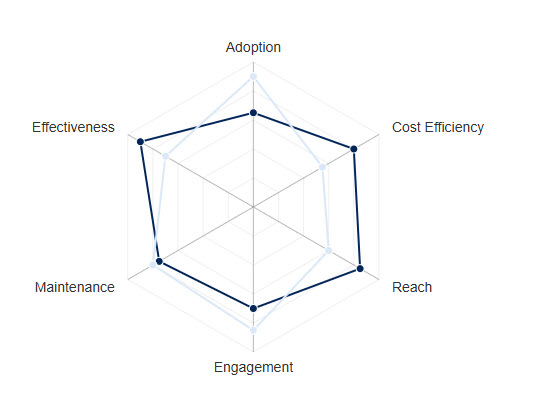
A radar chart is a data visualization that displays multiple related indicators on separate axes arranged radially, allowing you to see the overall “shape” of performance or conditions across dimensions.
Best Practices
Radar charts are a great way to show multivariate data. It is very useful for highlighting similarities and differences in attributes of your data. In public health, radar charts are often used to compare community health indicators, assess emergency preparedness capabilities, visualize disease burden profiles, or summarize program performance.
Use:
- When comparing multivariate data on a common scale.
- When showing profiles — strengths/weaknesses, distribution shapes, etc.
- When comparing one entity vs another (e.g., counties, programs, time periods).
Don't Use:
- When showing too many variables or indicators, as radar charts can become cluttered easily.
- If the variables do not share the same scale.
Quick Build Notes
- Select "Radar" as the Visualization Type.
- Upload your data.
- Select Radar as the Chart Type in the General tab.
- In the Data Series panel, use the Add Data Series dropdown to select the columns from your data that represent the values to display. Each selected column will display as a spoke on the radar chart.
- In the Radar Chart Settings panel, use the Category Column dropdown to select a column from your data that represents the data series.
- Configure additional settings as desired.
Configuration Options
The example visualization below highlights options available for radar charts. Key configuration selections are in the build notes section under the example.
For in-depth configuration information visit the Configuration Options section.
Example Radar Chart
Sample Data: Radar Chart Example
Data Format
- Vertical
- Multiple Series: No
General
- Chart Type: Radar
Data Series
Add Data Series:
- Adoption
- Cost Efficiency
- Reach
- Engagement
- Maintenance
- Effectiveness
Radar Chart Settings
- Category Column: Program
- Number of Grid Rings: 5 (Show)
- Grid Style: Polygons
- Show Data Points
Legend
- Position: Right
- Legend Style: Circles
- Legend Behavior: Isolate
Content Source:
Office of Communications